 BikeOtter
How to send a GPX route to a Wahoo ELEMNT
The Wahoo app, linked route services, USB and a direct Bluetooth push. Which one works on your unit, and what each needs before it will.
The usual way is to open the GPX file on your phone, pick the Wahoo app (or the ELEMNT app on an older unit), and send the imported route to the unit over Bluetooth. Your phone needs an internet connection for that, because the file is converted in Wahoo's cloud first. If you have no signal, copy the file over USB or push it straight from the phone with an app that talks to the ELEMNT over Bluetooth.
Which app does my ELEMNT use?
Wahoo has two phone apps, and the steps differ between them.
- ELEMNT ACE, BOLT 3 and ROAM 3 (the third generation) use the Wahoo app.
- The original ELEMNT, BOLT 1 and 2, and ROAM 1 and 2 use the ELEMNT app, listed in the app stores as ELEMNT Companion.
Not sure which one you have? The model number is printed on the back, by the mount. WFCC7, WFCC8 and WFCC9 are the ACE, ROAM 3 and BOLT 3. Lower numbers are the older units.
How do I import a GPX file with the Wahoo app?
This is for the ACE, BOLT 3 and ROAM 3. The unit has to be paired and connected to the Wahoo app, and the phone needs mobile data or Wi-Fi.
- Download the GPX, FIT or TCX file onto your phone.
- Open it, and choose Wahoo when the phone asks which app to use.
- Confirm the import, then close the prompt.
- In the Wahoo app, go to Explore, then My Collection, then My Routes.
- Tap the route and choose Send to ELEMNT.
You can also start from My Routes, tap + and choose Import a file. A route imported this way belongs to your Wahoo account, so you can rename or delete it in the app. Once it is in the app, Wahoo's help says it can go to the unit over Bluetooth with or without a data connection.
How do I import a GPX file with the ELEMNT app?
This is for the older units. Again the unit has to be connected to the app, and the app needs an internet connection.
- Download the GPX, TCX or FIT file onto your phone.
- Open it and choose ELEMNT as the app.
- In the ELEMNT app, go to the Workout tab, then Choose a route.
- Pick the route and tap Select route. The unit shows "Route loaded".
The route stays in your Wahoo account, so it also arrives with your next Wi-Fi sync.
Can I sync routes from Komoot, Ride with GPS or Strava instead?
Yes, and for a big library it is the easiest way. Link the service once in the app (Authorized apps in the profile or account page), and your routes appear in the app's route list.
- Komoot: your planned tours.
- Ride with GPS: routes you created, saved or pinned.
- Strava: routes you created, saved or starred.
From there, send one route over Bluetooth, or connect the unit to Wi-Fi and press Sync on the unit's Routes page to pull the whole library. The Komoot guide covers that service's own rules, and routes not syncing covers what to check when nothing arrives.
Can I copy a GPX file over USB?
Yes, on every generation, from a desktop or laptop. The ELEMNT shows up as a media device (MTP), like an Android phone. Windows opens it directly; on a Mac you need an MTP app such as OpenMTP.
- Switch the unit on and connect it with a USB data cable. Many cables only charge.
- Open the routes folder on the unit.
- Copy your GPX or TCX file into it.
On an ACE, BOLT 3 or ROAM 3, USB access is off by default. Turn it on first in the Wahoo app under Devices, your unit, Settings. Wahoo notes that routes copied in by hand live only on the unit: they are not backed up and don't show in the app.
The way that skips the cloud
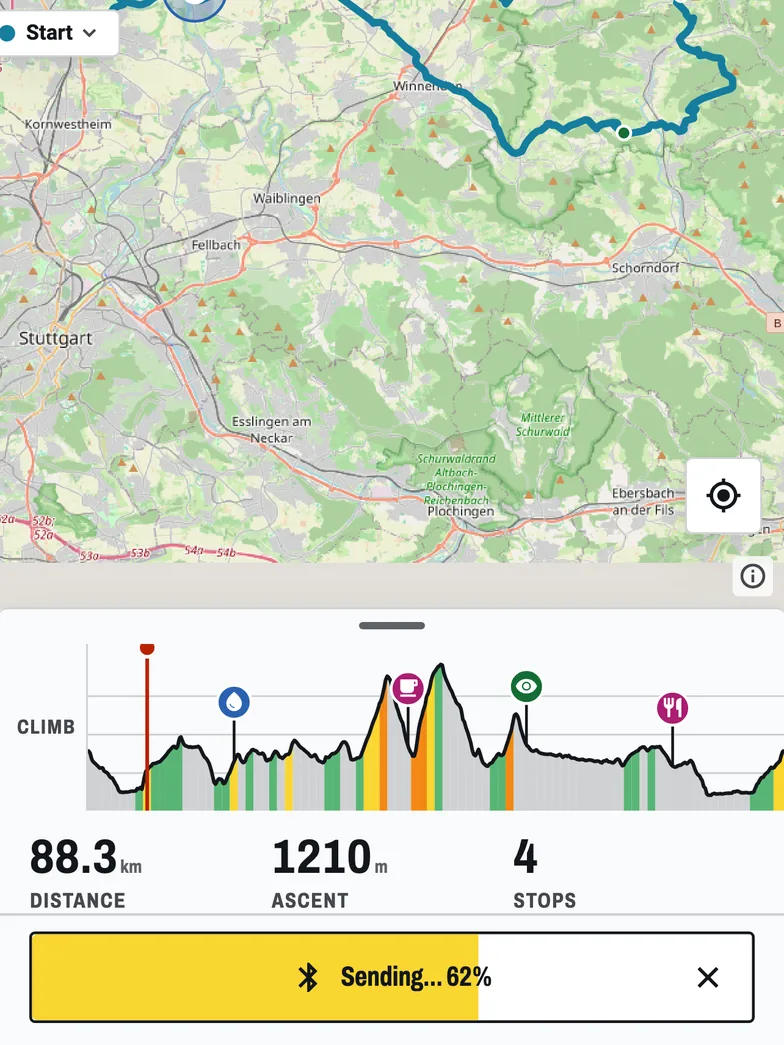

I built BikeOtter so a route can go from the phone to the ELEMNT directly. It talks to the unit over Bluetooth in the ELEMNT's own protocol, so there is no upload, no conversion server and no Wahoo account in the path.
- Open the GPX or FIT file on your phone and share it to BikeOtter, or tap + in the Routes tab and choose Import. A file shared from Komoot, Strava, a mail app or Dropbox works the same way.
- The route opens in the editor. Check the line and the stops.
- Tap Send. The button fills as the file goes across, and the unit starts navigating when it lands.
Waypoints in the GPX come along as stops on the unit's map. You can also plan a route in the browser or in the app and send that. If the unit isn't nearby, Queue for unit sends it the next time the unit connects. Sending a route is free. The ELEMNT holds one phone connection at a time, so if the Wahoo app is connected, release it there first. First-time setup and firmware updates stay in the Wahoo app. The ELEMNT page lists which models have been run on real hardware.
Troubleshooting
- The app won't accept the file. It is damaged or not a route. Download it again, or export it again from the planner.
- "Route loaded" never appears. Check that the unit shows as connected in the app, then try again. If that fails, restart the unit and the app.
- No turn-by-turn prompts. The original ELEMNT and BOLT 1 only give turn cues on routes from Ride with GPS or Komoot that carry them. BOLT 2 and ROAM 1 and 2 generate cues for other routes up to 200 km. Want fewer prompts instead? See turning off turn cues.
- USB shows an empty drive or nothing. Try a different cable, make sure the unit is switched on, and on a third-generation unit check that USB access is enabled.
Which way should I use?
| Way | Needs internet | Units |
|---|---|---|
| Wahoo app import | Yes, on the phone, to import | ACE, BOLT 3, ROAM 3 |
| ELEMNT app import | Yes, on the phone | ELEMNT, BOLT 1/2, ROAM 1/2 |
| Linked route service | Yes, and Wi-Fi for a full sync | All |
| USB cable | No, but you need a computer | All |
| BikeOtter over Bluetooth | No | BOLT, ROAM, ACE |
If you plan in Komoot or Ride with GPS and have Wi-Fi at home, linking the service is the least work. For a one-off file, the Wahoo or ELEMNT app is fine when you have signal. For a file you get at the start line, a route with your own stops on it, or a unit with no Wi-Fi, a direct Bluetooth push is quicker. More on that in sending a route without Wi-Fi.
Related guides
Where these steps were checked
The official steps above follow the vendors' own help pages as of 25 Oct 2026. Menus move between app versions. If a step here no longer matches what you see, send a note to support and the guide gets fixed.
- Wahoo: Import a FIT, GPX, or TCX route file via the Wahoo app (ACE, BOLT 3, ROAM 3)
- Wahoo: Routes with ELEMNT ACE, BOLT 3 and ROAM 3
- Wahoo: Import and delete routes to ELEMNT computers
- Wahoo: Connect an ELEMNT, BOLT 1/2, or ROAM 1/2 to a desktop/laptop computer
- Wahoo: Connect an ACE, BOLT 3 and ROAM 3 to a desktop/laptop computer