 BikeOtter
How to put a GPX route on a Garmin Edge without Garmin Connect
Garmin's own way runs through your Garmin account. Here is how that works, and the two ways that need neither an account nor a connection.
Connect the Edge to a computer with a USB cable, copy the GPX or FIT file into the Garmin folder on the unit (usually Garmin/NewFiles), and unplug it. The course then appears under Navigation, Courses. That needs no internet and no Garmin account. If you have no computer with you, an app that talks to the Edge over Bluetooth can send the course straight from your phone.
How does Garmin expect you to send a course?
Through Garmin Connect. Garmin's manual for the Edge 540 describes it like this, and other Edge models work the same way with slightly different menus:
- Open the Garmin Connect app, or connect.garmin.com in a browser. You need a Garmin Connect account.
- Create a course, or pick one you imported as a GPX file.
- Choose Send to Device and pick your Edge.
- Sync the Edge with the Garmin Connect app, or with Garmin Express on a computer.
- On the Edge, the course appears on the home screen. Select it and ride. Navigation, then Courses, lets you pick a different one.
This works well when you have signal and are happy to use the account. Komoot, Ride with GPS and other planners can also sync courses into Garmin Connect for you. All of these need an internet connection somewhere along the way. If a course from one of them never reaches the Edge, see Garmin course not syncing.
How do I copy a GPX file to an Edge over USB?
This is the oldest way, and it still works.
- Connect the Edge to a computer with a USB data cable. Garmin's manual says it shows up as a drive or portable device on Windows and as a mounted volume on a Mac.
- Open the Garmin folder on the unit.
- Copy your file into NewFiles. Komoot's help also lists Courses, GPX and Tours as folders some models use, and says the names can vary by model and firmware.
- Eject the Edge before you unplug it.
- On the Edge, open Navigation, then Courses. The course should be there.
Some Edge models want a FIT file rather than a GPX. If a GPX disappears from the folder without turning up as a course, convert it to FIT and try again. Komoot's help mentions this too.
The way that skips the cloud
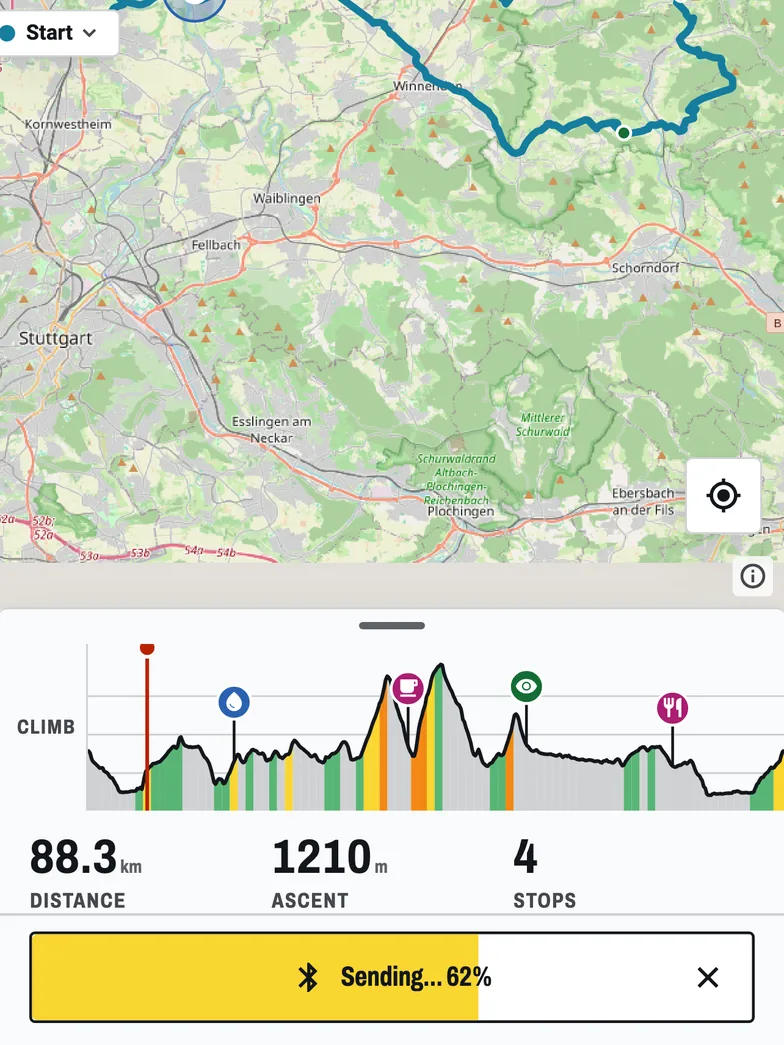
BikeOtter talks to a Garmin Edge directly over Bluetooth and sends a course from the phone, with no Garmin account and no internet in the path. Garmin support in BikeOtter is in beta. Sending a course has been run on real hardware on an Edge 540, and by riders on their own Edge 840, Edge 1030 and a fēnix 6 Pro watch. The Garmin page keeps the current list.
- Close the Garmin Connect app fully. A head unit talks to one app at a time, so while Garmin Connect holds the Edge, BikeOtter can't reach it.
- In BikeOtter, open Devices, scan and connect your Edge.
- Open the GPX or FIT file on your phone and share it to BikeOtter, or import it from the Routes tab. You can also plan a route in the browser or in the app.
- Tap Send. BikeOtter uploads the route to the Edge as a FIT course.
Sending a course is free. BikeOtter doesn't do a new unit's first-time setup, so that still happens once in Garmin Connect. If you'd rather keep the course in your Garmin account, BikeOtter can also hand a route to the Garmin Connect app on Android (Send to Garmin Connect), or give you the FIT course file to share anywhere.
Troubleshooting
- The Edge doesn't show up on the computer. Use a data cable, not a charging-only one, and try another USB port. Garmin's manual notes that computers with several network drives can fail to show the device.
- The file vanished but no course appeared. Restart the Edge. If it still isn't there, try the file as FIT instead of GPX.
- BikeOtter can't connect. Make sure Garmin Connect is fully closed, not just in the background. If the link opens and drops within seconds, the phone's Bluetooth pairing has gone stale: forget the Edge in the phone's Bluetooth settings and connect again, and confirm any pairing code quickly, as it only shows for a few seconds.
- A new Edge doesn't appear in BikeOtter at all. It needs its first-time setup in Garmin Connect before any other app can use it.
Which way should I use?
| Way | Needs internet | Needs a Garmin account |
|---|---|---|
| Garmin Connect, Send to Device | Yes | Yes |
| USB from a computer | No | No |
| BikeOtter over Bluetooth (beta) | No | No, after first setup |
If you already plan in Garmin Connect or sync a planner into it, keep doing that: it is the most complete way, and the course lands on every device on your account. At home with a laptop, USB is reliable once you know which folder your model uses. On the road with only a phone and no signal, a Bluetooth push is the one that works. Riding a Wahoo as well? The Wahoo GPX guide covers the ELEMNT side.
Related guides
Where these steps were checked
The official steps above follow the vendors' own help pages as of 25 Oct 2026. Menus move between app versions. If a step here no longer matches what you see, send a note to support and the guide gets fixed.