 BikeOtter
How to get a Google Maps route onto a Wahoo ELEMNT
Google Maps has no GPX export, so its route can't go straight to the unit. What Wahoo offers for a single place, and two ways to bring the stops across.
There is no direct way. Google Maps doesn't export a route as a GPX file, and the Wahoo app has no route builder to rebuild it in. For a single destination, Wahoo describes sharing a place from Google or Apple Maps to an ACE, BOLT 3 or ROAM 3, which makes a one-time route from where you are. For a route with several stops, rebuild it in a planner that syncs to Wahoo, such as Komoot or Ride with GPS, or import the Maps link into an app that turns its stops into a bike route and sends it to the unit.
Why can't I just send the Google route?
Because a Google Maps link doesn't contain the route. Google's help describes getting directions and adding up to nine stops, but no way to download the result as a file. When you share directions, the link carries the start, the stops and the destination. The line Google drew between them is worked out again whenever the link is opened.
So whatever you use, the stops come across and the line between them is planned again. For a bike, that is often no loss: a car or walking route is rarely the road you'd choose to ride.
How does Wahoo's "share a place" feature work?
Wahoo's help describes this for the ACE, BOLT 3 and ROAM 3. It replaces the older "Take me to" function.
- Make sure the unit is paired and connected to the Wahoo app, has a GPS fix, and the phone has mobile data or Wi-Fi.
- In Google Maps or Apple Maps, select a place: search for it, type an address, or tap the map.
- In the place's panel, choose Share. Wahoo's help says specifically not to choose Directions.
- Pick the Wahoo app. If it isn't listed, look under More.
- When the app asks to share the location to the ELEMNT, choose Navigate.
The unit then routes from your current position to that one place. Wahoo lists some limits: it is one location, not a set of directions; the route is temporary; and with Google Maps in the EU, the place has to be chosen from an address rather than a dropped pin. Whether it works also depends on your unit, its firmware and the maps app version, so try it at home before a ride that relies on it.
On the older units (ELEMNT, BOLT 1 and 2, ROAM 1 and 2), the ELEMNT app has its own Take Me To... under the Workout tab, for one destination within 100 km. You search for the place in the ELEMNT app, not in Google Maps.
How do I rebuild a multi-stop route for Wahoo?
This is the official way, and it keeps the route in your account.
- Write down the stops from Google Maps, in order.
- In Komoot or Ride with GPS, plan a route through the same stops. Both let you add a stop by searching for it.
- Save it. With the service linked in the Wahoo app under Authorized Apps, the route shows up in your route list.
- Send it to the unit over Bluetooth, or sync the unit on Wi-Fi.
If you'd rather not link a service, export a GPX from the planner and import it into the Wahoo app as the GPX guide describes. Either way you get turn-by-turn cues from the planner or the unit, and the route stays saved.
The way that skips the cloud
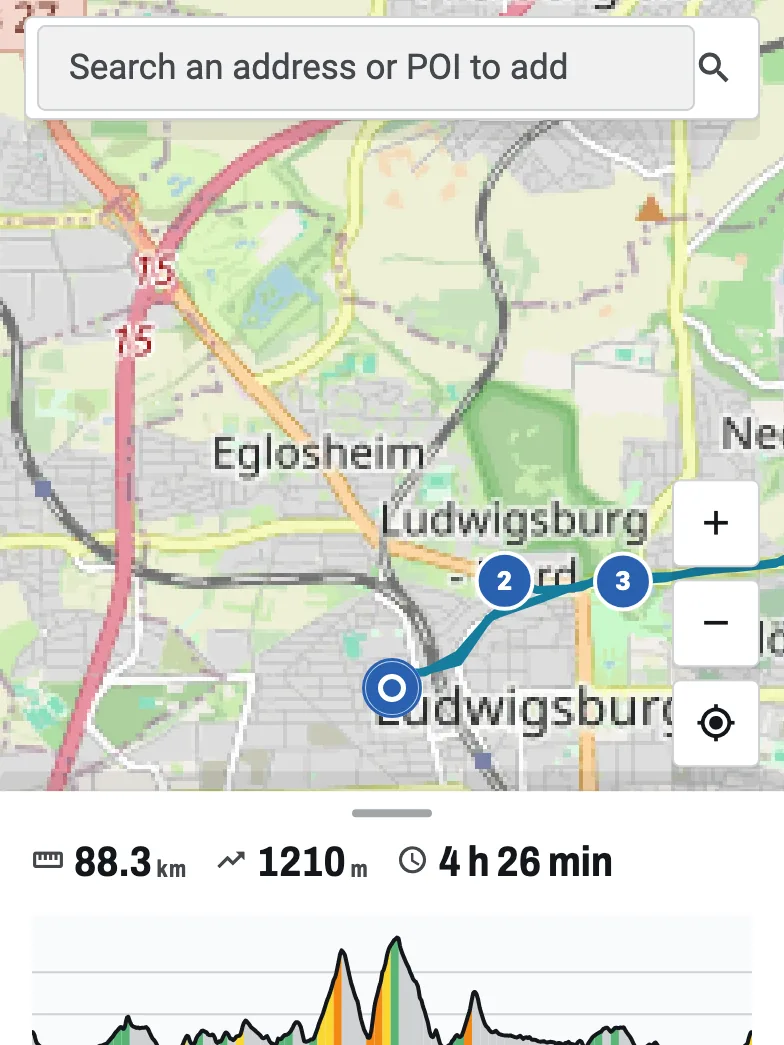
BikeOtter can take a Google Maps or Apple Maps directions link and turn its stops into a bike route, then send it to the ELEMNT over Bluetooth.
- In Google Maps or Apple Maps, set up the directions with your stops and share them. On Android, pick BikeOtter in the share sheet. On iPhone, copy the link.
- In BikeOtter, open Routes, tap +, then Import a route and From a maps link. It reads the link from the clipboard.
- Every stop in the link becomes a stop on the route, in order, and BikeOtter plans a rideable line through them. "Current Location" as the start means your phone's position.
- Open the route in the planner if you want to move a stop or drag the line onto a different road.
- Tap Send.
Multi-stop links work for both Google and Apple. Planning the line needs a data connection; sending it to the unit doesn't. Importing a Maps link and sending the route are free. If the link turns out to be a single place, BikeOtter says so instead of guessing a route. The feature book has more on routing, and you can also plan in the browser.
Troubleshooting
- Wahoo doesn't appear in the share sheet. Look under More in the share options, and make sure the Wahoo app is installed and signed in.
- "Share" makes a route to the wrong spot. In the EU, choose the place by its address in Google Maps, not by a pin on the map, as Wahoo's help notes.
- The stops in BikeOtter look wrong. A stop given only by name is looked up by name. Check each stop on the map, and drag it where needed in the planner.
- The line differs from Google's. That's by design: the link has no line in it, so the route is planned again for a bike.
Which way should I use?
| Way | Stops | Units |
|---|---|---|
| Wahoo share a place | One destination, from where you are | ACE, BOLT 3, ROAM 3 |
| Take Me To in the ELEMNT app | One destination, within 100 km | ELEMNT, BOLT 1/2, ROAM 1/2 |
| Rebuild in Komoot or Ride with GPS | As many as you add | All |
| BikeOtter, from the Maps link | Every stop in the link | BOLT, ROAM, ACE |
For a quick "take me to the station" on a third-generation unit, try Wahoo's share feature. For a day out you'll ride again, rebuild it in your planner so it lives in your account. To get a friend's multi-stop Google route onto the unit in a few taps, import the link. If you later want fewer turn prompts on it, see turning off turn cues.
Related guides
Where these steps were checked
The official steps above follow the vendors' own help pages as of 25 Oct 2026. Menus move between app versions. If a step here no longer matches what you see, send a note to support and the guide gets fixed.
- Wahoo: Share a location from Apple or Google Maps apps to ELEMNT ACE, BOLT 3 and ROAM 3
- Wahoo: Routes with ELEMNT ACE, BOLT 3 and ROAM 3
- Wahoo: Routes for ELEMNT computers
- Google Maps Help: Get directions and show routes
- Wahoo: Import a FIT, GPX, or TCX route file via the Wahoo app (ACE, BOLT 3, ROAM 3)